
Quick guide
How to use Zfaff
From picking a template to sharing the link with guests — five clear steps.
- 1
Browse templates
Open Templates and tap “Browse look” to see a live preview without filling a form. Pick the design you like.
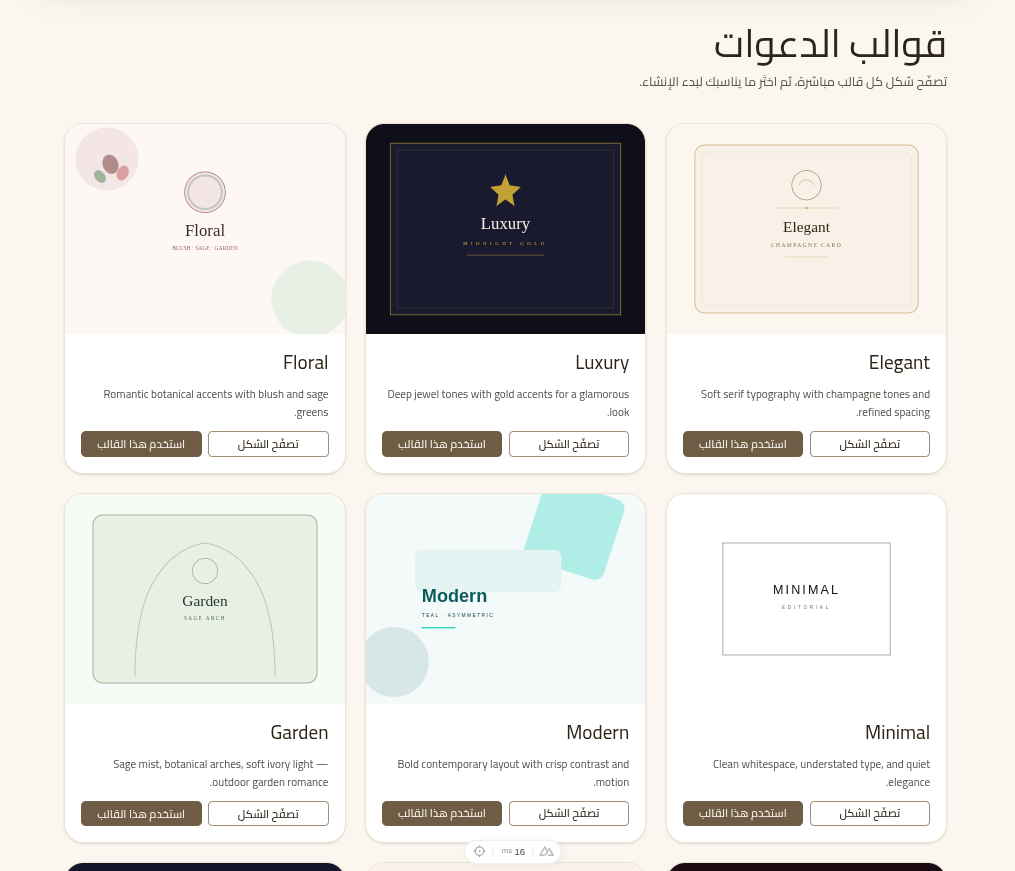 1Tap “Browse look” for a live preview2Or “Use this template” to start creating
 - 2
Create an account
Sign in or register, then use the template to start your invite (one account = one invitation).
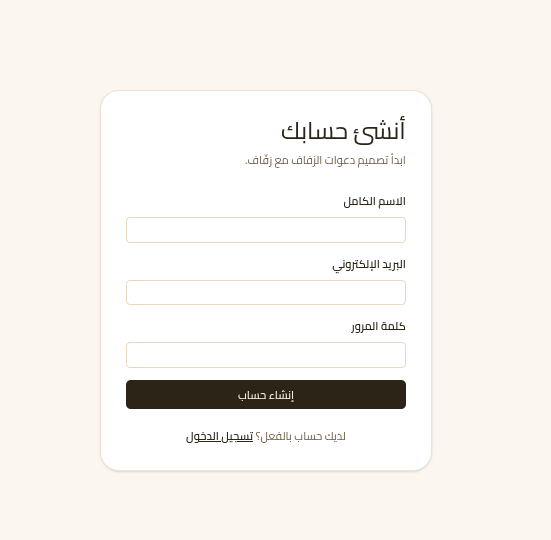 1Enter name, email, and password2Then tap “Create account”
 - 3
Buy a package
From Billing choose Basic or Premium and pay by card or wallet. The subscription unlocks editing and publishing for one month; upgrade to Premium is available for the price difference.
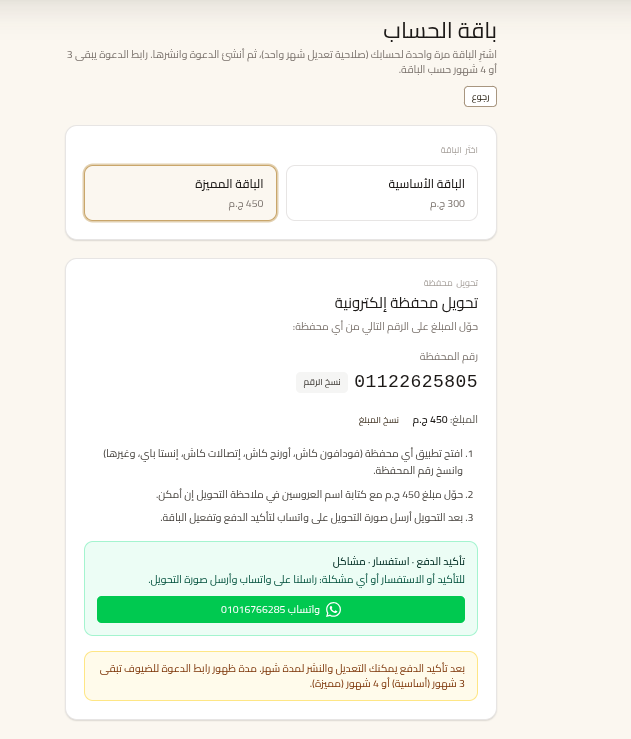 1Choose Basic or Premium2Transfer the amount and send the receipt on WhatsApp
 - 4
Customize the invite
Add names, date, venue, photos, and music from your device (song or video). Enable the sections included in your package.
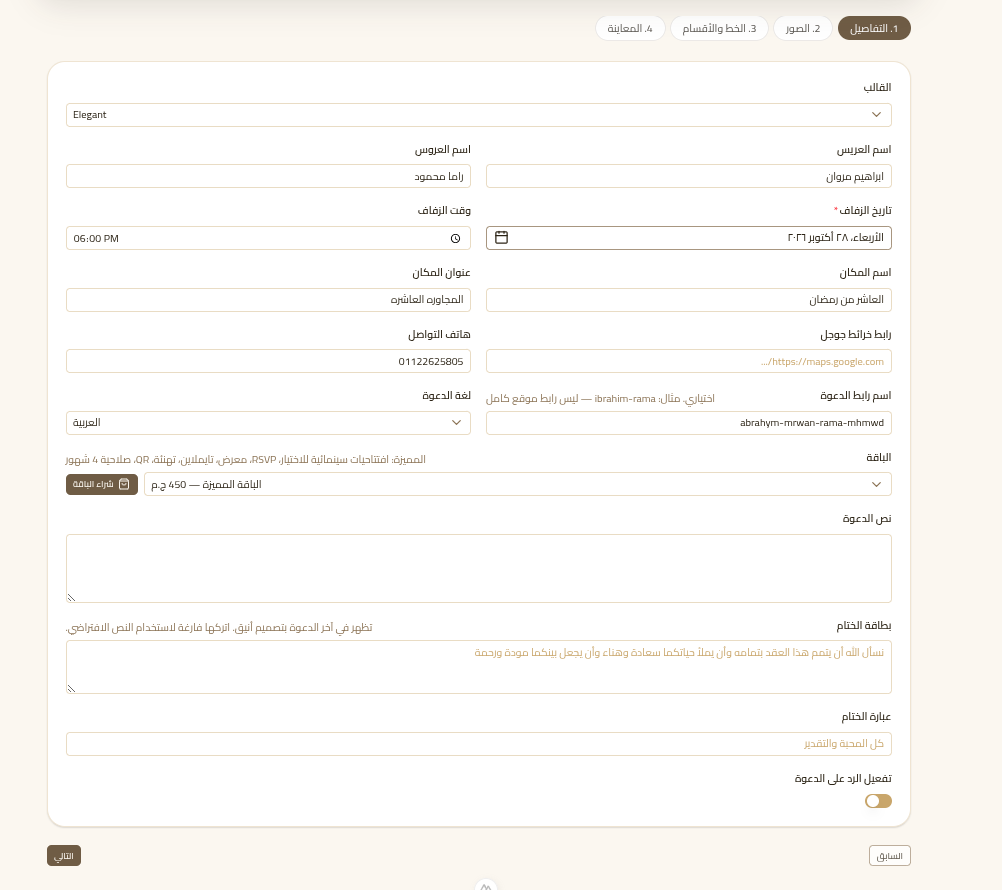 1Add couple names, date, and venue2Use the Photos tab to upload images and music3Tap Next for preview, then publish
 - 5
Publish and share
Publish, then copy the link or share on WhatsApp. Guest links stay live for 3 months (Basic) or 4 months (Premium).
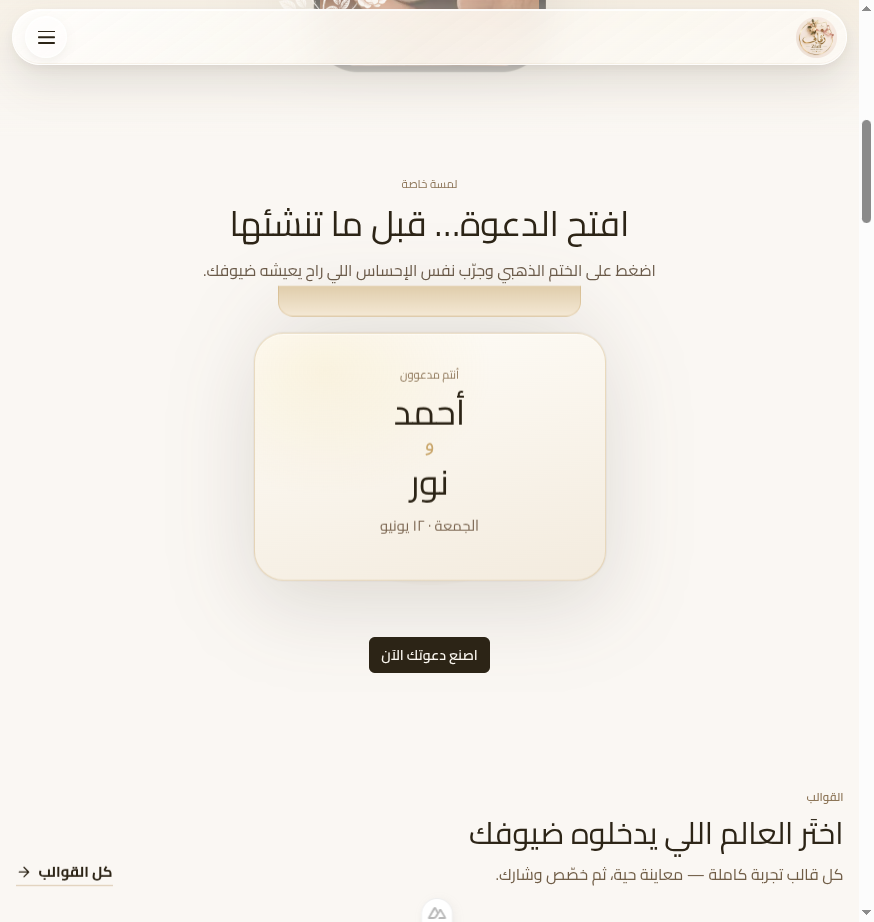 1After publishing, guests open the invite like this2Share the link with guests on WhatsApp
Important notes
- You can upload music or audio from your device while creating the invitation.
- Editing lasts one month after purchase — the published guest link lasts according to the package.
- If you have Basic, you can upgrade to Premium by paying only the difference.
- After publishing, track RSVPs from the dashboard on Premium.